How to create a transparent audio waveform image
Turn a whole recording into a clean PNG or SVG for an album graphic, a podcast cover, or a video overlay.
Open the tool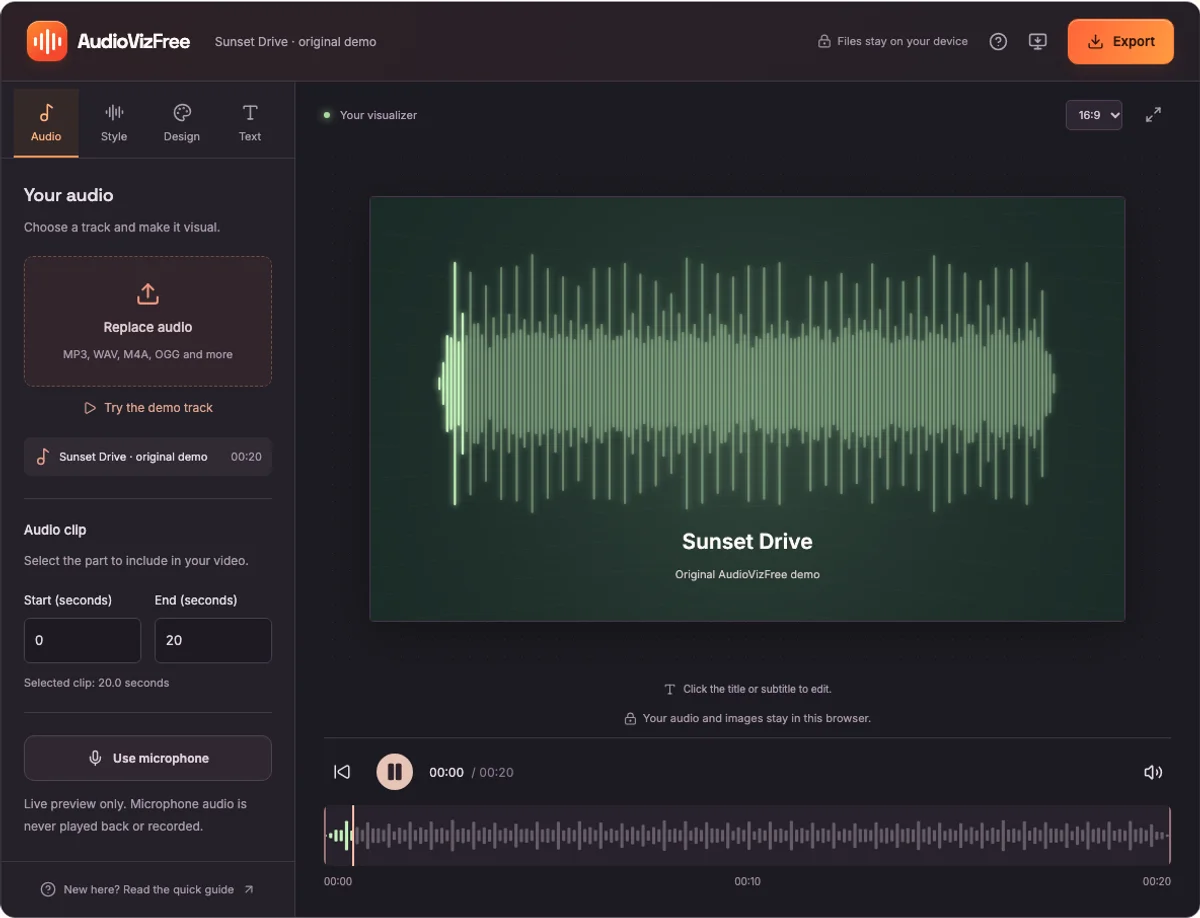
1. Start with the Waveform Generator
Open Waveform Generator and choose your audio. Complete waveform images are available for recordings up to 5 minutes and 25 MB. The editor reads the amplitude of the recording to draw its waveform.
Unlike the animated preview in other tools, this tool displays the shape of the whole file. The horizontal position corresponds to time. Taller sections indicate a larger amplitude in that part of the recording.
2. Style the waveform
Open Design to select a visualizer color and a landscape, square, or portrait aspect ratio. Open Style to adjust Sensitivity. Increasing sensitivity makes smaller peaks taller; it does not change the sound.
For an overlay on a dark design, try a light waveform color. For a light design, use a darker color so that the waveform remains readable.
3. Export PNG or SVG
Open Export and choose PNG image or SVG waveform. Enable Transparent background to remove the background from the exported image. The waveform image contains no cover art or text.
PNG is a raster image with a fixed pixel size. Choose the higher resolution when you need a larger image. SVG contains vector shapes and can be scaled in a compatible design tool. Both formats are silent images.
4. Place it in your design
Import the downloaded file into your image or video editor and position it above your background. Transparent pixels let the underlying artwork show through.
If you need a waveform that moves with the sound, use a video export instead. A static waveform image does not animate, and AudioVizFree does not export transparent video.