How to make a music visualizer for YouTube
Build a widescreen video from a music track, cover art, and an animated spectrum.
Open the tool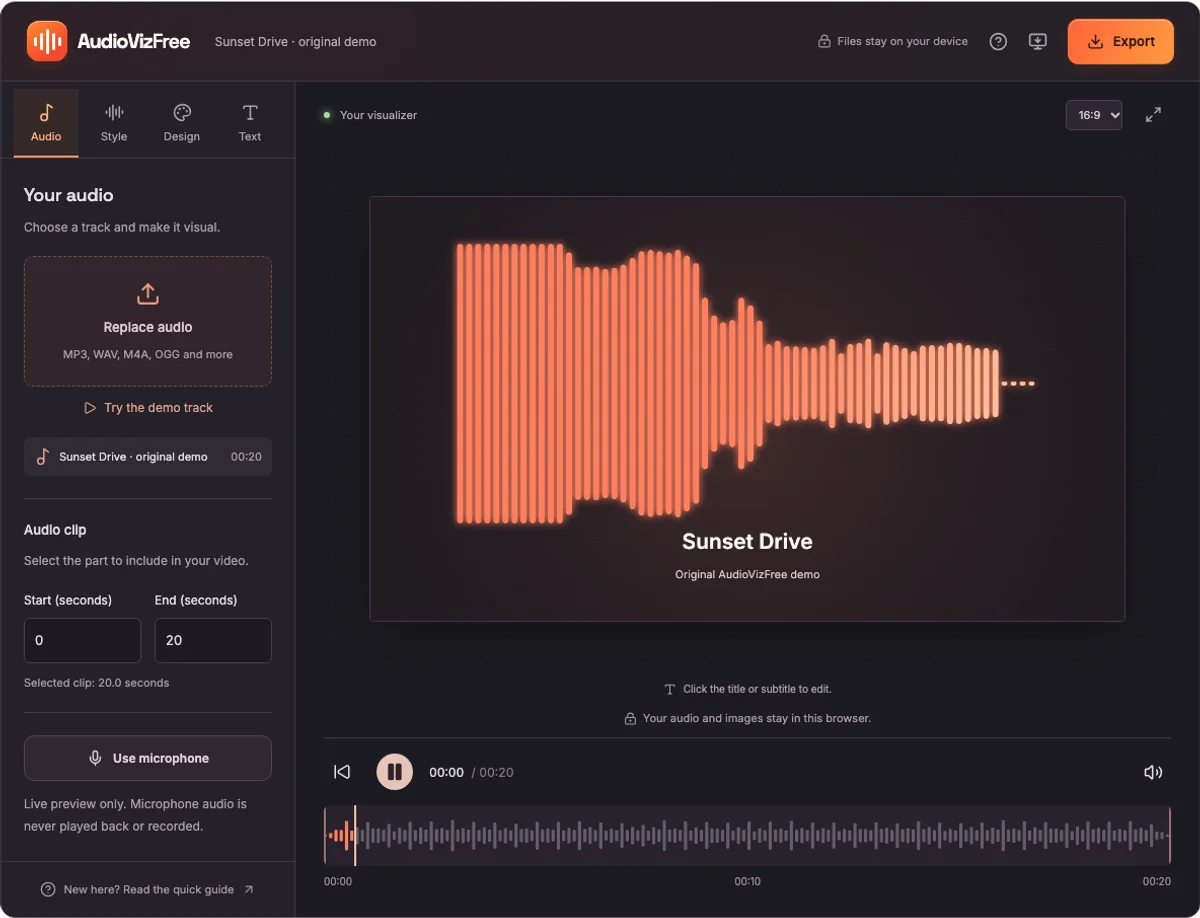
1. Choose your music track
Open Music Visualizer and choose an MP3 or WAV file. You can also try the original demo before using your own track. Press Play to check the audio and the animated spectrum. The bars respond to the frequencies in your track.
Choose audio you have the rights to publish. AudioVizFree creates the visual layer; it does not grant rights to the underlying music.
2. Set up a widescreen composition
Open Design and select 16:9 · Landscape. This gives you a widescreen canvas. Upload your cover art and, if you want, a background image. A dark background keeps a bright spectrum easy to see.
Use Style to choose Classic Bars, Mirrored Bars, Circular Spectrum, Bass Pulse, or Particles. Adjust Sensitivity if the animation feels too small or too strong.
3. Add your track information
Open Text and enter the track title and artist name. The preview updates as you type. Use a short title so that it stays legible on small screens. You can switch Show text in the visual off if the artwork already contains the information.
4. Check the clip and export
In Audio, set the start and end of the clip in seconds. Export supports clips up to 5 minutes. Preview the beginning and end before opening Export.
Choose Video, 1080p or 720p, and an available file format. AudioVizFree records the visuals together with the selected audio in real time. A 30-second clip takes about 30 seconds to record. Keep this tab visible until the download is ready.