How to turn an MP3 into a video
Add a visual layer to an audio file and download a video that includes the sound.
Open the tool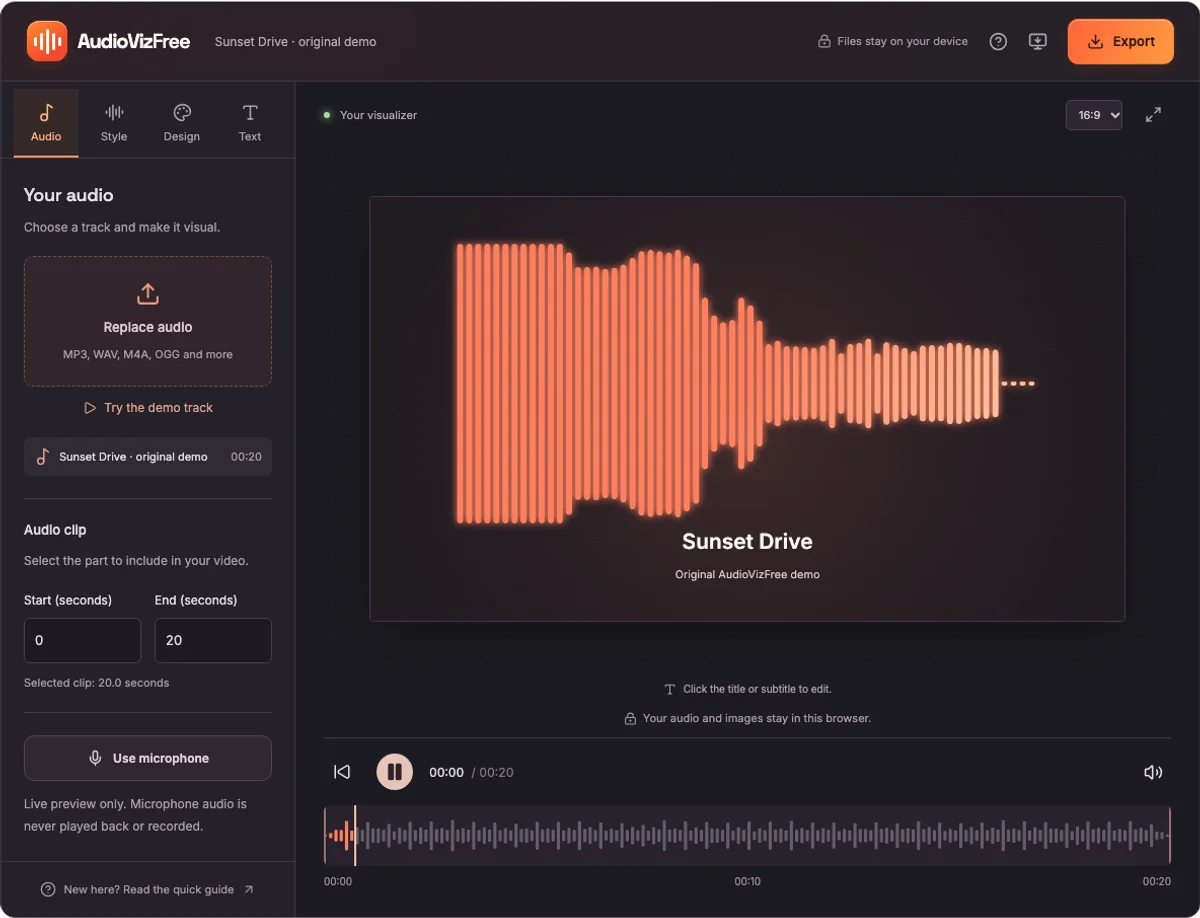
1. Open the studio and add your MP3
Choose an audio file from your device or drag it onto the preview. After the file is read, its name and duration appear in the Audio panel. Press Play to listen. Nothing is uploaded to a server.
MP3 and WAV are good starting points. Other formats depend on the codecs available in your browser. If the file cannot be read, the editor displays an error instead of pretending that it loaded.
2. Choose the picture that moves with your audio
Open Style and select one of the twelve visualizers. In Design, choose a landscape, square, or portrait composition. You can also change the background color or upload a background image.
For a simple music video, choose Classic Bars, a dark background, and one bright visualizer color. Add a title in Text. The preview is the composition used for video export.
3. Select the audio segment
Use the Start and End fields in the Audio panel to choose a clip. The timeline lets you seek through the track before you export. The selected segment must be at least 0.1 seconds and no more than 5 minutes for video export.
4. Download the video
Open Export, select Video, and choose a resolution and supported format. Press Export video. The output combines the canvas recording with your audio track.
Keep the tab in the foreground and your device awake. If you hide the tab, the export stops with an explanation; this avoids quietly recording frozen visuals. The audio file itself remains unchanged.