How to create a podcast audiogram
Give a spoken audio clip a portrait or square video with show art and an animated waveform.
Open the tool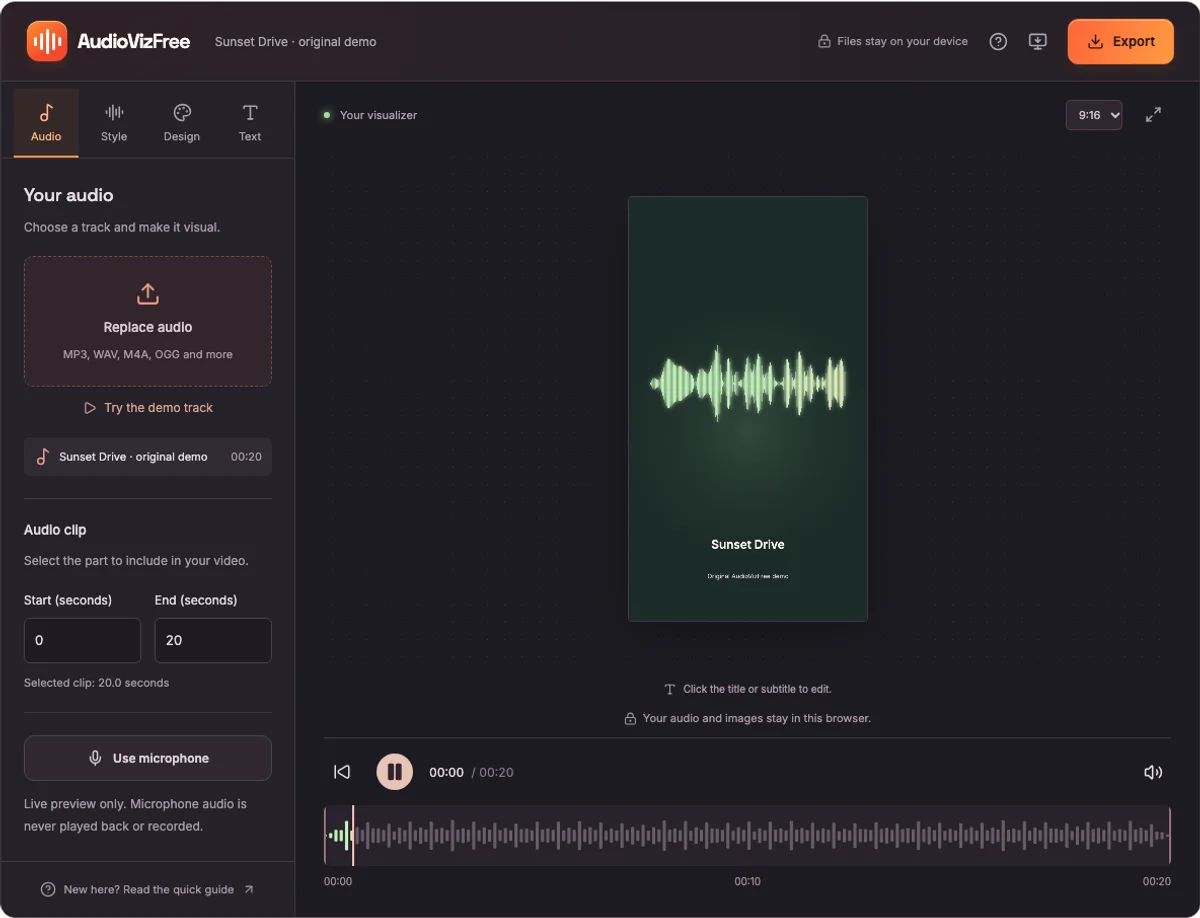
1. Choose the moment you want to share
Open Podcast Audiogram and upload a voice recording. In Audio, enter the start and end times for the excerpt. Choose a self-contained moment that makes sense without the rest of the episode.
The default canvas is portrait. If you are making a square post, open Design and select 1:1. AudioVizFree supports a video clip of up to 5 minutes.
2. Add your show artwork
In Design, upload a cover image. You can use a separate image or a solid color for the background. Choose a contrasting waveform color so that it remains visible.
The waveform animation follows the current audio signal. It is particularly useful for speech because pauses and bursts of sound give the visual a clear rhythm.
3. Name the episode
Open Text and enter an episode title. Use the second line for the podcast name or speaker. Keep both lines short enough to read on a phone.
AudioVizFree adds a title and subtitle line, not timed captions or a transcript. If you need word-by-word captions, add those after export with a captioning tool.
4. Export and check your clip
Play the full selected segment before exporting. Open Export, choose Video and a supported format, then keep this tab visible while the clip records.
Watch the downloaded video and listen to its sound before publishing. Check the framing, the title, and the start and end of the spoken excerpt. Keep the original audio file for future edits.